Removing articles from search

Written by Benji Weiser
Updated at March 3rd, 2026


Table of Contents
To remove an article from your app's search history, the easiest way to do this is to set the article as Expired in the Pugpig Express CMS - once processed through distribution, it will be automatically removed from search. If you need to remove it manually, follow the steps below.
If the article has been removed from the CMS but is still appearing in search, it needs to be cleared from AWS via Distribution.
Removing individual articles
- Go to your Distribution site
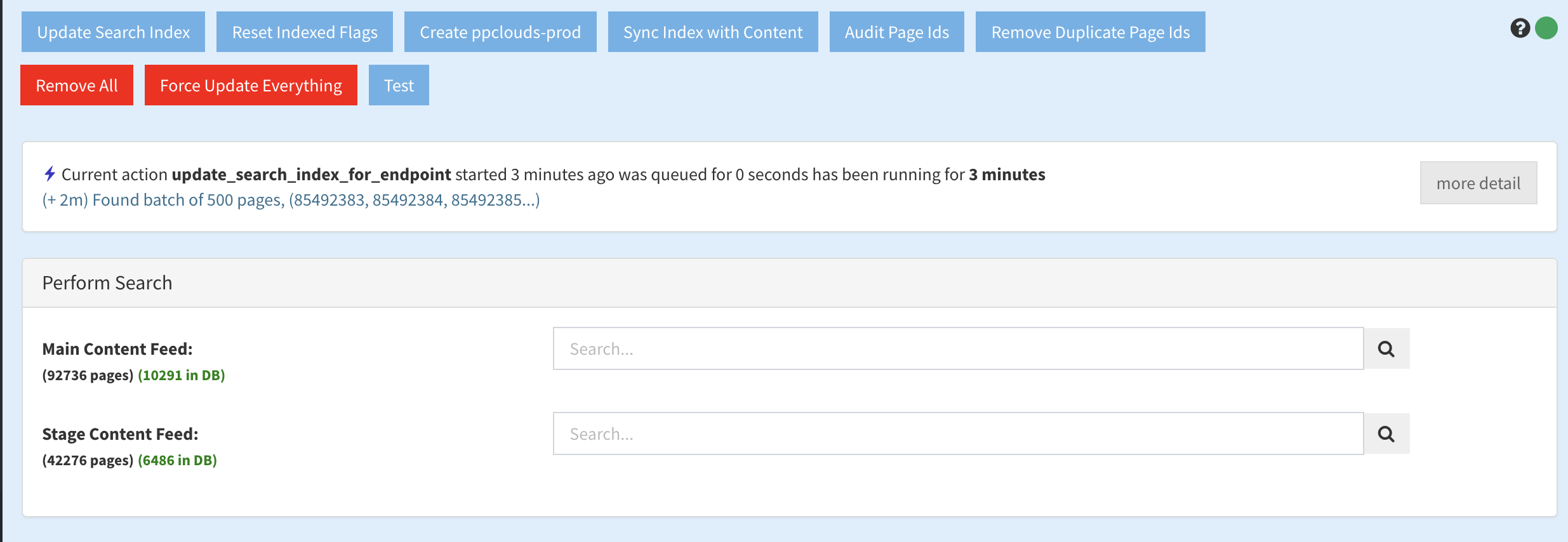
- Navigate to Search and Feeds > Cloud Search in the left hand menu on the relevant app
- Find the article you want to remove by searching for the article title in the relevant content feed
- In the returned results, locate the article you want to remove (you may need to confirm the page ids if there are multiple versions of the article)
- Remove the article by clicking "Remove from Index"
- Update by clicking "Update Search Index"
Removing all articles and resyncing
Sometimes we may need to remove all articles from the search and resync the articles. This may be needed when duplicate articles are appearing (on mass) if not <guid> is set in the early days of RSS set up.
Note doing these steps will clear all results from search and will only sync up content that are in timelines at that current time.
- Go to your Distribution site
- Navigate to Search and Feeds > Cloud Search in the left hand menu on the relevant app
- Click 'Remove all'. This will clear all results from search.
- Click 'Reset index flags'.
- Click 'Update search index'. You should start seeing hits on your search again